


Collage Maker - Photo Editor
4.82.47K Reviews
App Specs
- Version
- 1.6.8.1
- Updated On
- License
- Free
- Downloads
- 10,000,000+
- Developer
- A Photo Studio
- Categories
- Photography
- Platform
- Android, iOS
Screenshots
 Analysis by AppCompare
I tend to reach for Collage Maker - Photo Editor when I want to turn a handful of phone pictures into something ready to share, rather than spend time learning a full photo-editing suite. It’s a photography app from A Photo Studio, and its focus is practical: arrange images, give them a consistent look, and add a little personality with text or stickers. That makes it most useful for everyday storytelling, not for detailed retouching or professional image work.
When the network becomes part of the workflow
Connectivity matters most around the edges of a project: when browsing for creative material, moving a finished image to another service, or trying to post while away from home. The central creative task is choosing pictures and arranging them, but I wouldn’t plan a time-sensitive post around an assumption that every connected step will behave the same way on every network. My practical approach is to make the collage first, then share it when the connection is steady.
That small change in order is useful if you’re making a birthday greeting during a commute or assembling photos before a family gathering. Instead of switching repeatedly between the editor and a social app, decide on the images and layout in one sitting, then handle posting afterward. It keeps the creative part focused and makes it easier to spot a weak photo or crowded design before anyone else sees it.
Made for quick mobile moments
The app suits the way people actually take pictures on a phone: in bursts, across different occasions, and often without a plan for how they will be presented. I can see it working well for a weekend recap, a simple before-and-after comparison, or a few snapshots of a meal that look more considered together than as separate posts. The layout choice gives a useful starting point when I have several images but no clear design idea.
A good everyday workflow is to choose the pictures before choosing the template. I’d first remove near-duplicates and keep only images that contribute something different—one wide view, one detail, and perhaps a candid moment. Then I’d pick a layout that gives the most important image room to breathe. This avoids the common collage problem where every shot is included but none of them stands out.
It is also worth thinking about where the finished image will appear. A compact collage can be convenient for a social post or a message, while a design intended for printing needs more attention to how small faces and text will look at a larger size. I would zoom in and check the details before saving a version for paper, especially if the layout contains several small frames.
What to do when a share or edit goes wrong
Any mobile editing workflow can be interrupted by a call, a low battery, an app switch, or a poor connection at exactly the wrong moment. I try not to leave a finished project sitting unsaved while I decide what caption to write or where to send it. Saving a copy before moving to another app is a sensible habit, particularly when the collage took time to arrange.
Worth Reading Before You Choose

Flipboard Shows What News Apps Must Do Beyond the Feed

Switching to Android Auto Means Rethinking Your Driving Routine

Google Calendar Makes a Crowded Week Easier to Manage

Ludo King Makes the Most of the Minutes Between Plans

Baby Panda World Brings Quick Play to Modern Phones, but Its Game Library Feels Busy

ESPN’s Live Game View Makes Following Close Games Easier
If a post does not go through, I would check whether the image has been saved to the device before rebuilding anything. That simple recovery step separates the editing task from the social-sharing task: a failed upload does not have to mean a lost design. For a more important gift or print, I’d also keep the source photos untouched until I have checked the exported collage, so I can make a fresh version if I notice a crop or color choice I dislike.
Keep the session light on data and clutter
When I’m watching mobile data, I avoid repeatedly sending the same large image through different services just to compare how it looks. I finish the layout, inspect it once, and then share the version I actually want. It is a modest habit, but it also reduces duplicate files and makes the camera roll easier to manage.
There is a similar trade-off with decorative elements. Stickers, text, filters, and borders can help a collage feel personal, but adding all of them at once can make the photos harder to read. I usually choose one visual idea—perhaps a short caption or a restrained border—and let the pictures carry the rest. That works especially well for travel and family collages, where the images already have a clear story.
For a quick test, I’d make a small collage from a few ordinary photos rather than begin with an important project. That gives you a chance to get comfortable with the layout and editing choices, see how the result looks on your screen, and decide whether the style fits before spending time on a larger collection. It’s also a useful way to learn which kinds of pictures crop well into the frames you prefer.
Unleashing Your Creative Side
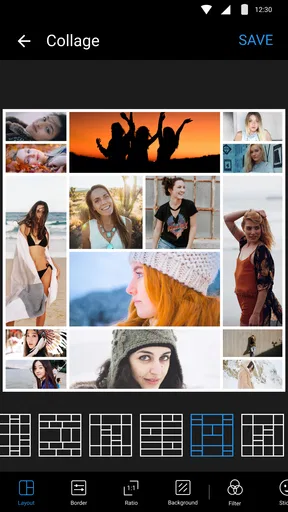
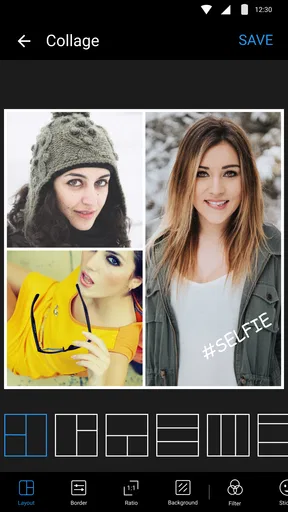
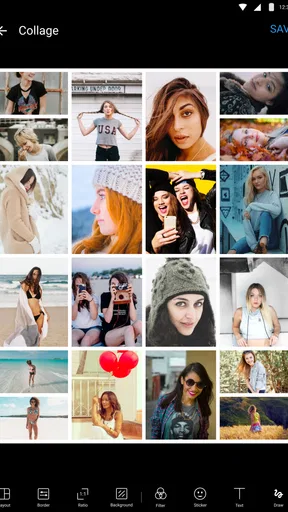
As soon as I fired up Collage Maker - Photo Editor, I was greeted with a sleek and intuitive interface. It felt like the app was practically begging me to start piecing together my favorite memories. The first thing that caught my eye was the variety of templates available. From grid layouts to funky abstract designs, there’s something for every mood and occasion.
I particularly loved how easily I could drag and drop my photos into the templates. It’s almost like a digital scrapbook, but without the mess of glue and paper! The app supports both single-photo editing and multi-photo collages, so whether you want to highlight one stellar shot or showcase a collection, you’re covered.
Features That Stand Out
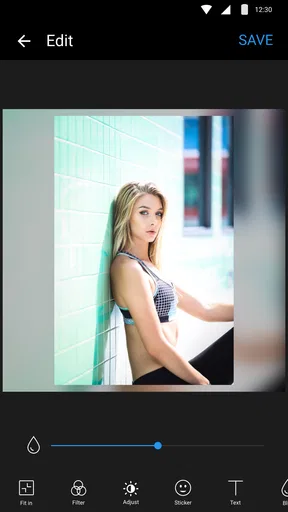
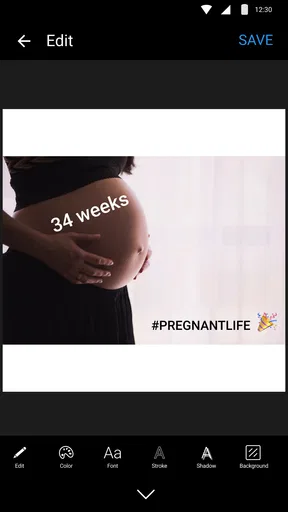
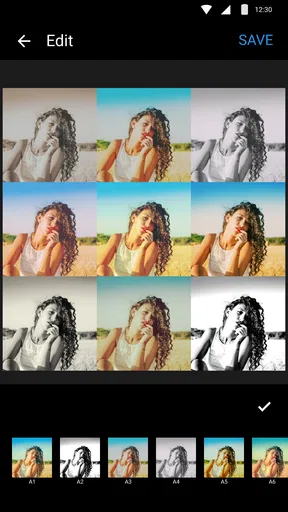
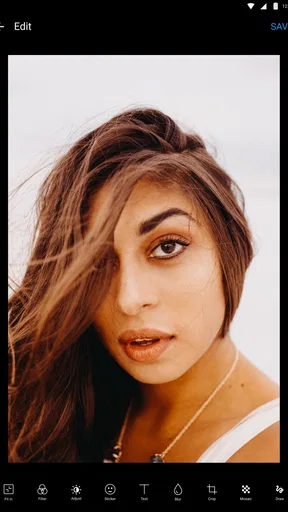
Now, let’s talk features. One of the standout elements is the editing tools. You’ve got your basic adjustments like brightness, contrast, and saturation, but there’s more. I’m talking about filters that can give your photos that Instagram-worthy pop and text options that let you add a personal touch.
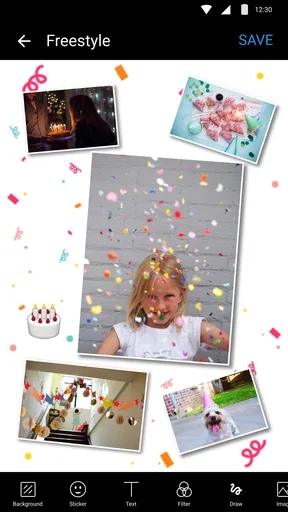
Adding stickers and doodles is a breeze, turning your images into playful artworks. And if you’re someone who loves playing with backgrounds, you can easily swap them out to match your aesthetic. The app even lets you adjust the border size and color, so your collage looks exactly the way you envision it.
Easy Sharing and Connectivity
Once you’ve crafted your masterpiece, sharing it is a piece of cake. The app integrates seamlessly with social media platforms, allowing you to post directly to Instagram, Facebook, or wherever your audience hangs out. The quality of the export is top-notch, ensuring that your images look as sharp as they did in the app.
What’s more, Collage Maker - Photo Editor offers options to save your projects in high resolution, so if you decide to print your collages, they’ll look spectacular on paper too. I’ve already started a little gallery wall at home, and it’s safe to say it’s been a hit with visitors!
Why You’ll Love It
One of the things I appreciate most about this app is its accessibility. Whether you’re a newbie looking to dabble in photo editing or a pro seeking a quick way to create stunning visuals, this app caters to all skill levels. The learning curve is practically nonexistent, which means more time creating and less time figuring out how to use the tools.
Plus, the app is super responsive. I didn’t experience any lag or crashes, which is a huge bonus in my book. Nothing’s worse than losing your work right when you’re in the creative zone, am I right?
Choosing it over other photo tools
Compared with a general-purpose photo editor, this app makes more sense when the end result is a composed image rather than one carefully perfected photograph. A dedicated editor is usually the better choice for selective retouching, precise color work, or detailed control over a single shot. Here, the attraction is the quicker path from a group of pictures to a unified collage, with text and decorative touches close at hand.
It also fills a different role from a social network’s built-in layout tools. Those can be convenient when I’m already posting, but a separate collage app gives me room to think about the arrangement before I commit to a post. On the other hand, if I only need to place two photos side by side once, opening a dedicated editor may feel like an extra step. This app earns its place when I expect to make collages often enough to value its range of layouts and styling choices.
Who will get the most from it
I’d recommend it to people who regularly share family moments, event highlights, travel snapshots, or small product displays and want a simple way to make them feel deliberate. It can also suit someone preparing a personal greeting: a few selected images, a short line of text, and a layout can say more than sending a loose batch of photos. The key is keeping the selection focused rather than treating every available frame as an invitation to add another picture.
It is less suited to anyone who needs precision-first editing, extensive manual control, or a formal design workflow with exact brand specifications. A collage builder can help organize a visual story, but it does not replace a desktop design tool when typography, alignment, and repeatable production standards matter. I’d also skip it if I rarely combine photos and already have a favorite editor that handles the occasional grid well.
A small project that shows its strengths
Imagine getting home after a day out with several similar pictures: a group shot, a sign or landmark, a close-up, and one candid that captures the mood. I’d choose just a few that tell different parts of the story, place the strongest image in the most prominent frame, then use a subtle background or border to make the set feel connected. A short caption can add context, but a long block of text would compete with the photos.
Before sharing, I’d check each crop rather than judging only the overall preview. Faces near an edge can be clipped by a frame, and an image that looked balanced in the camera roll may lose its subject once fitted into a template. A quick adjustment to the chosen pictures or layout can solve that without adding more decoration. This is one of the most useful habits for making a collage look intentional rather than merely assembled.
Practical limits and sensible expectations
The abundance of design choices is helpful, but it can also slow down someone who wants a single, restrained result. I find it best to set a simple goal first: a clean grid, a playful greeting, or a visual recap. Then I can ignore options that do not support that goal. More filters and stickers do not automatically make a better collage, and consistent treatment across the images often matters more than choosing a different effect for every frame.
Keep the original photos available while experimenting. If a crop, filter, or embellishment does not work, returning to the source gives you a clean starting point instead of forcing the design to accommodate an early choice. For valuable photos, I’d save the final image and inspect it before deleting or reorganizing anything. This is basic file hygiene, but it prevents a casual creative session from becoming a frustrating search for the original shot later.
People often wonder whether this is mainly for collages or whether it can also help with one image. In my experience, its appeal is the mix: you can work on an individual photo, then use the same creative environment to combine several. If your priority is advanced editing of one photograph, though, the collage-oriented approach may feel limited compared with a specialist editor.
Price, age suitability, and what to expect
The app is free to download, with in-app purchases listed at $2.99 per item. I’d start with the free experience and decide whether the tools I actually use justify any optional purchase, rather than assuming every design choice requires spending. Its Everyone content rating also makes it appropriate for a broad audience, though parents may still want to guide younger users around sharing photos and adding personal details to images.
It was released on October 3, 2017, and version 1.6.8.1 is the current version, with Android 6.0 as the minimum operating-system requirement. Those details make it easier to judge basic device compatibility, but I’d still check the app’s behavior on the phone I plan to use, especially if it is an older device or has limited storage. The app has a 4.8 average from around 289,000 ratings, with about 2,500 written reviews and more than 10 million installs. That broad adoption is reassuring, but the right test is still whether its layout and editing style suit the way you make pictures.
My connectivity verdict
Connectivity shapes the handoff more than the creative decision-making: I’d treat arranging and refining as one task, then saving and sharing as another. That approach is more dependable when a connection is variable and makes recovery straightforward if a post has to wait. I would not choose this app on the assumption that every step works without a network; I’d choose it because it offers a convenient mobile route to a finished collage and lets me decide when to send it onward.
Final Thoughts
In a world where capturing and sharing life’s moments is more important than ever, Collage Maker - Photo Editor is a gem. It’s packed with features that allow you to express your creativity and share your story in a fun and engaging way. Whether you’re making a heartfelt collage for a loved one or just having fun with your photos, this app delivers.
If you haven’t yet, give it a whirl. You might just find yourself addicted to the endless possibilities this app offers. Happy editing, my friends!
Pros
- User-friendly interface for easy navigation.
- Wide variety of templates and layouts.
- Quick export options to social media platforms.
- High-quality photo editing tools included.
- Customizable text and stickers for creativity.
Cons
- Ads can be intrusive during editing.
- Watermark present in the free version.
- Limited features without premium upgrade.
- Occasional app crashes on older devices.
- Some features require internet connection.
FAQs for Collage Maker - Photo Editor
What features does Collage Maker - Photo Editor offer?
Collage Maker - Photo Editor provides a wide range of features for creating stunning photo collages. Users can choose from various grid layouts, backgrounds, and borders. The app also offers tools for photo editing, including filters, stickers, text overlays, and more, making it easy to personalize your creations.
Is Collage Maker - Photo Editor free to use?
Collage Maker - Photo Editor offers a free version with essential features, but it also includes in-app purchases for additional premium content. These can include exclusive templates, stickers, and advanced editing tools. The free version is sufficient for basic use, but upgrading can enhance your creative options.
Can I share my collages directly from the app?
Yes, Collage Maker - Photo Editor allows you to share your creations directly to social media platforms like Instagram, Facebook, and Twitter. You can also save your collages to your device's gallery for later use. The app makes sharing seamless and quick, enhancing user experience.
What kind of photo editing tools are available in the app?
The app includes a variety of editing tools such as crop, rotate, adjust brightness, contrast, and saturation. Users can apply artistic filters, add text, and use stickers to enhance their photos. These tools are user-friendly, catering to both beginners and more advanced users.
Is Collage Maker - Photo Editor easy to use for beginners?
Absolutely! Collage Maker - Photo Editor is designed with a user-friendly interface that makes it easy for beginners to navigate. It offers tutorials and tips to help new users get started. The intuitive design ensures that creating beautiful collages is a straightforward process, even for those with no prior experience.


